How to make Nano Banana images look real
AIImageEditor.pro · Published · Last updated
Nano Banana (Google Gemini's image model) keeps faces well, so its pictures usually need a light fix rather than a re-render: remove the oily glaze, the beauty-filter smoothing and any colour grade, and leave the rest. Remove AI Look on AIImageEditor.pro does exactly that with a light touch (5 credits).
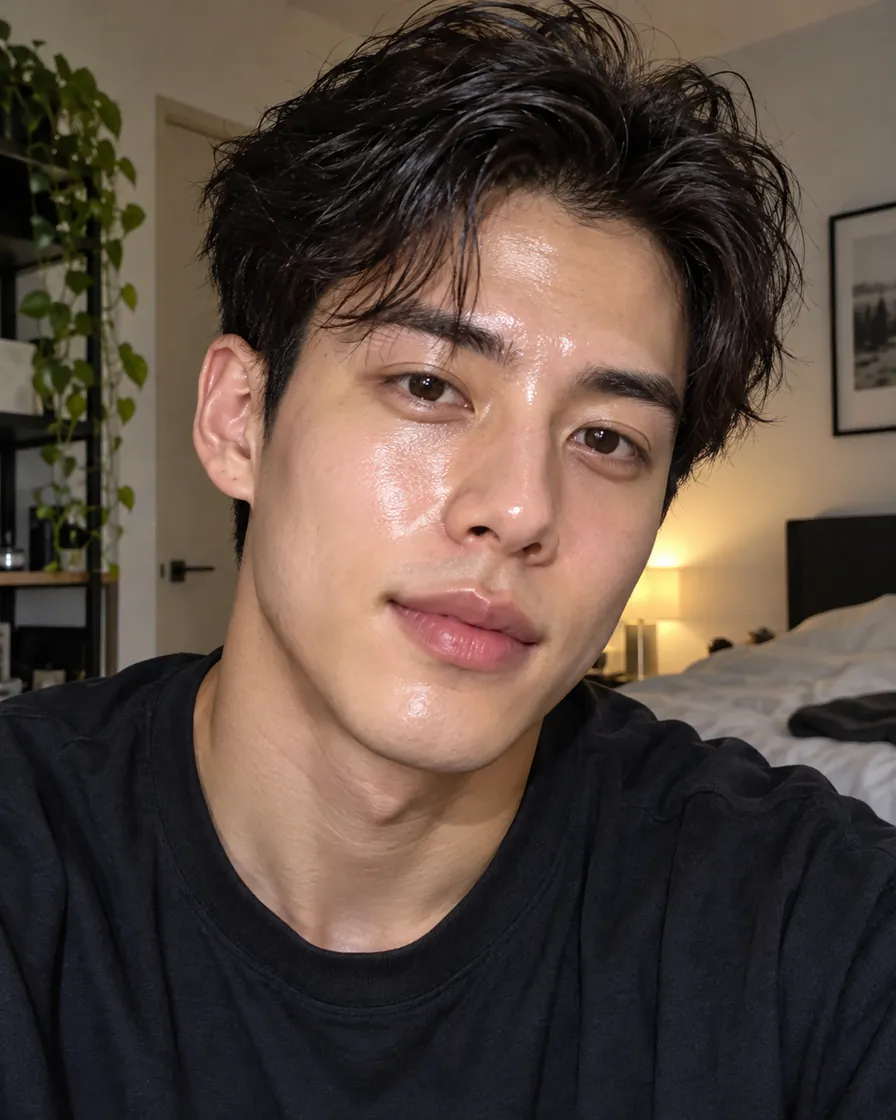
The usual Nano Banana tells
Nano Banana is strong at identity and natural composition. What gives Nano Banana images away tends to be on the surface:
- A wet shine across the forehead, nose and cheeks.
- Skin smoothed like a beauty filter while the rest of the image is sharp.
- A warm or teal colour grade over the whole picture.
- Hair that looks too even and glossy.

Fix only what is wrong
Because the face and the scene are usually right, a full conversion risks changing things that were fine. A targeted instruction works better: name the tell and tell the model to leave everything else.
On Remove AI Look the instruction lists six tells. Delete the ones your picture does not have. A Nano Banana portrait often needs only "remove the oily glaze and the beauty-filter smoothing".
Step by step: remove the AI look from Nano Banana images
The whole fix takes about half a minute and keeps the picture you made.
- Save the Nano Banana image from Gemini at full size.
- Open Remove AI Look and upload the Nano Banana image.
- In the instruction, keep only the tells you see: usually the glaze, the smoothing and the colour grade.
- Press the button (5 credits) and compare the result with the Nano Banana original using the handle.
- If one tell remains, run a second pass with only that line in the instruction.
Nano Banana portraits, products and rooms
Nano Banana portraits are the most common case: the face is right, the finish is too glossy. Nano Banana product shots tend to over-polish metal and glass, so ask the tool to "make reflections natural and add small scratches". Nano Banana interiors often carry a soft haze and bloom; removing it alone makes a room look photographed.
Nano Banana 2.1 and the older Nano Banana models share these habits, so the same fixes work for images from either.
When to use a stronger tool
If the whole picture feels generated (light, colour and skin together), use the AI image humanizer for an all-round phone-photo pass.
If the picture is an illustration or a 3D render made with Nano Banana, Make AI Photo Realistic turns it into a camera photo.
Prompt tips for new Nano Banana images
When you generate new Nano Banana images in Gemini, ask for "matte skin, no gloss", "natural colours, no colour grade" and "one light source". You will still want to check hands and small text in every picture before publishing.
The same model, on our side
Our realism tools run on Nano Banana 2.1 at 2K. It is also available directly in the AI image editor for your own instructions at 5 credits an edit.
FAQ
Why do Nano Banana images look glossy?
The model tends to add a beauty-filter finish: smooth, shiny skin and a colour grade. The composition itself is usually natural.
Will removing the AI look change the face in a Nano Banana image?
The instruction asks the model to leave everything that already looks real. List only the tells your picture has, so the changes stay small.
Is it free to make Nano Banana images look real?
The first fix is: new accounts get 5 free credits and one pass costs 5.
Remove the AI look from a photo
5 free credits when you sign in with Google. No watermark.
Remove the AI look from a photo