Skip to content

Remove AI look

Remove AI look from a photo,keep everything else

Most AI pictures are almost right. This tool removes the AI look only where it shows, the airbrushed skin, the glaze, the colour grade or the haze, and leaves the rest of the photo exactly as it was.

5 credits an image · Light touch · Nano Banana 2.1 · 2K · Same face, same framing

Example/Plastic skin on a portrait

PhotosJPG, PNG or WebP · up to 10 MB
500/2000

The instruction is filled in for you. Change it if you want something specific.

Model
Nano Banana 2.15 credits · ~30 s · 2KSet by this tool

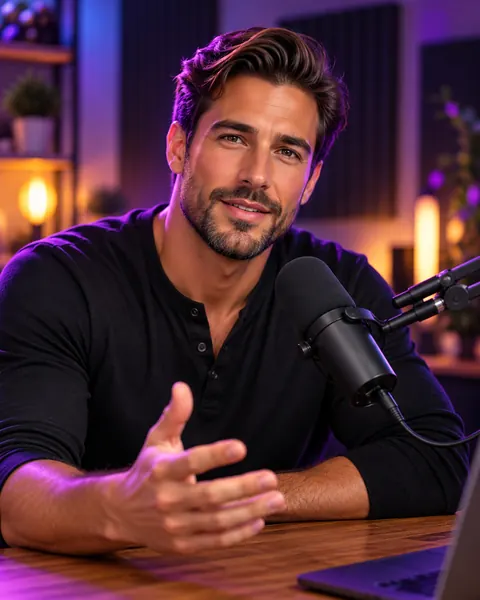
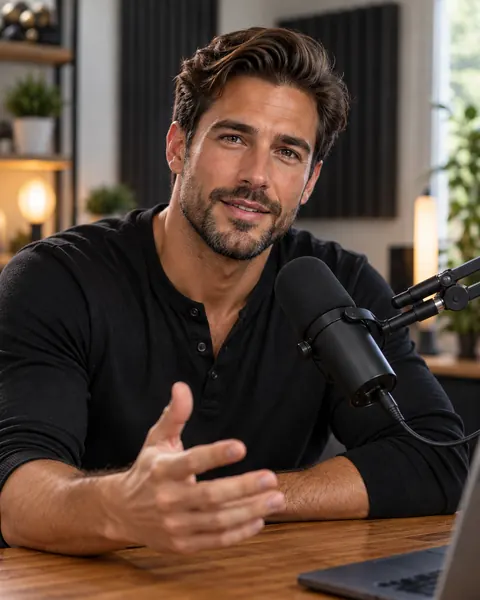
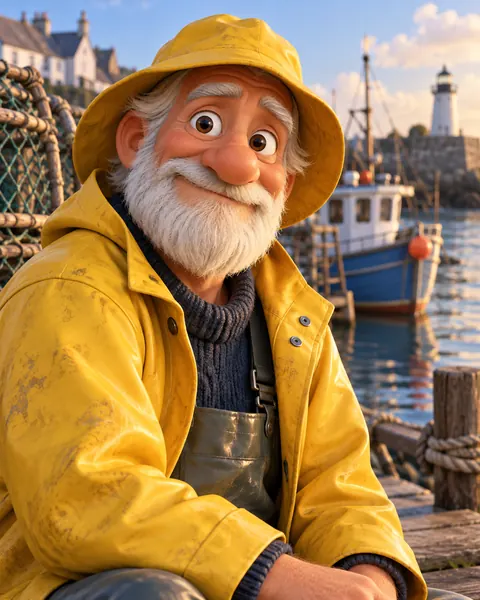
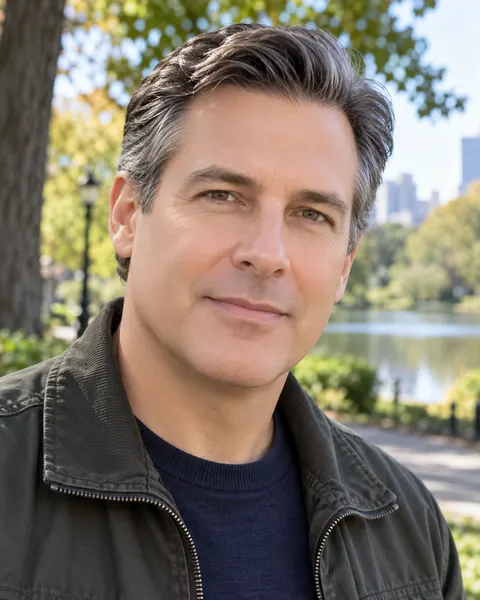
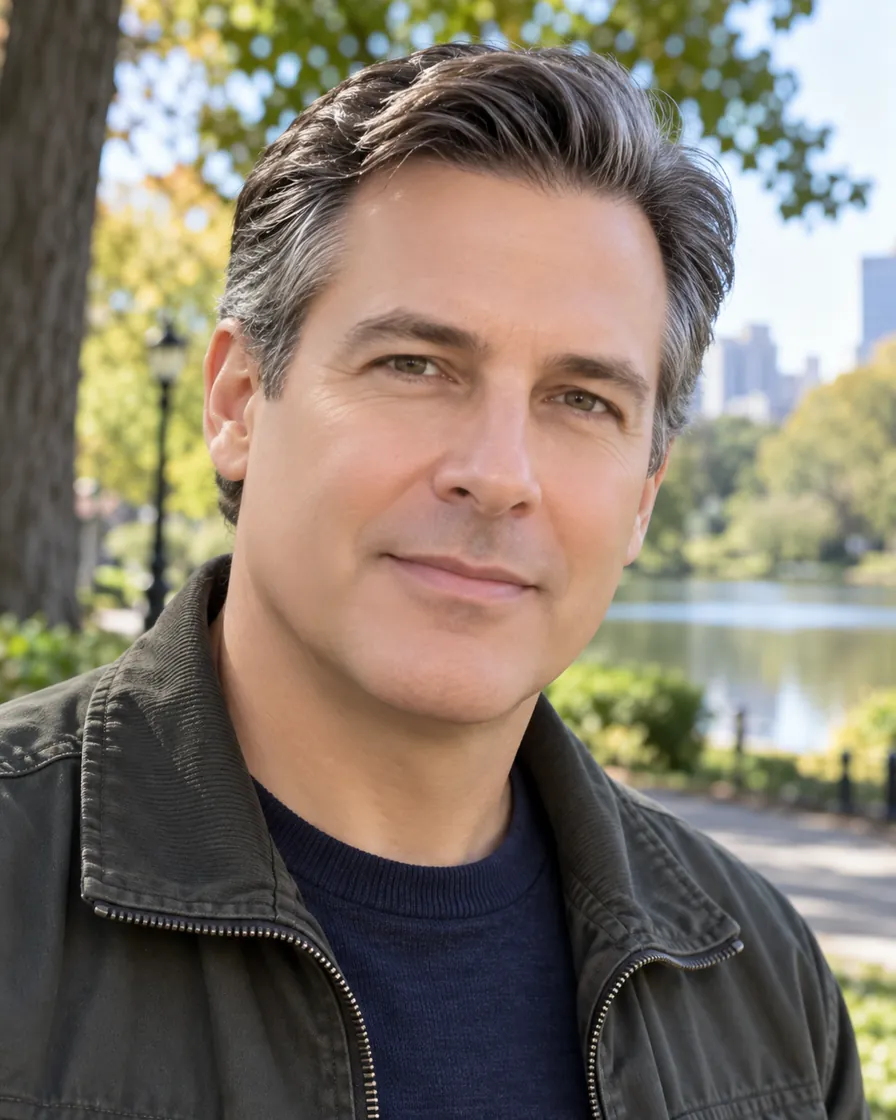
AI portrait of a man in his late 40s with plastic, poreless skin
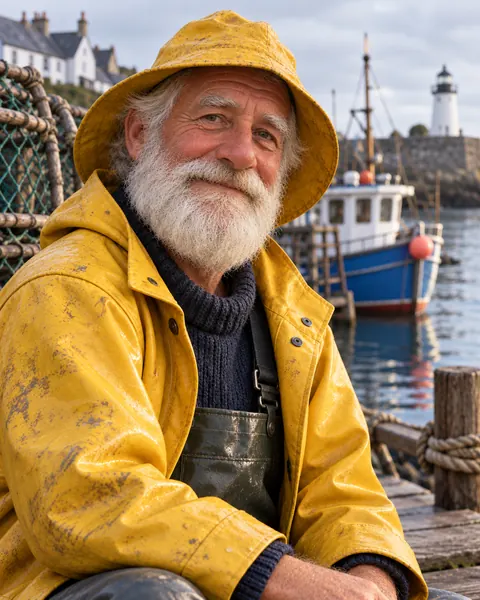
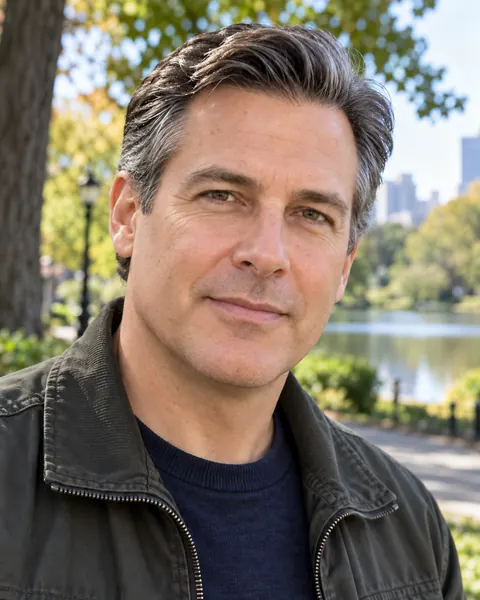
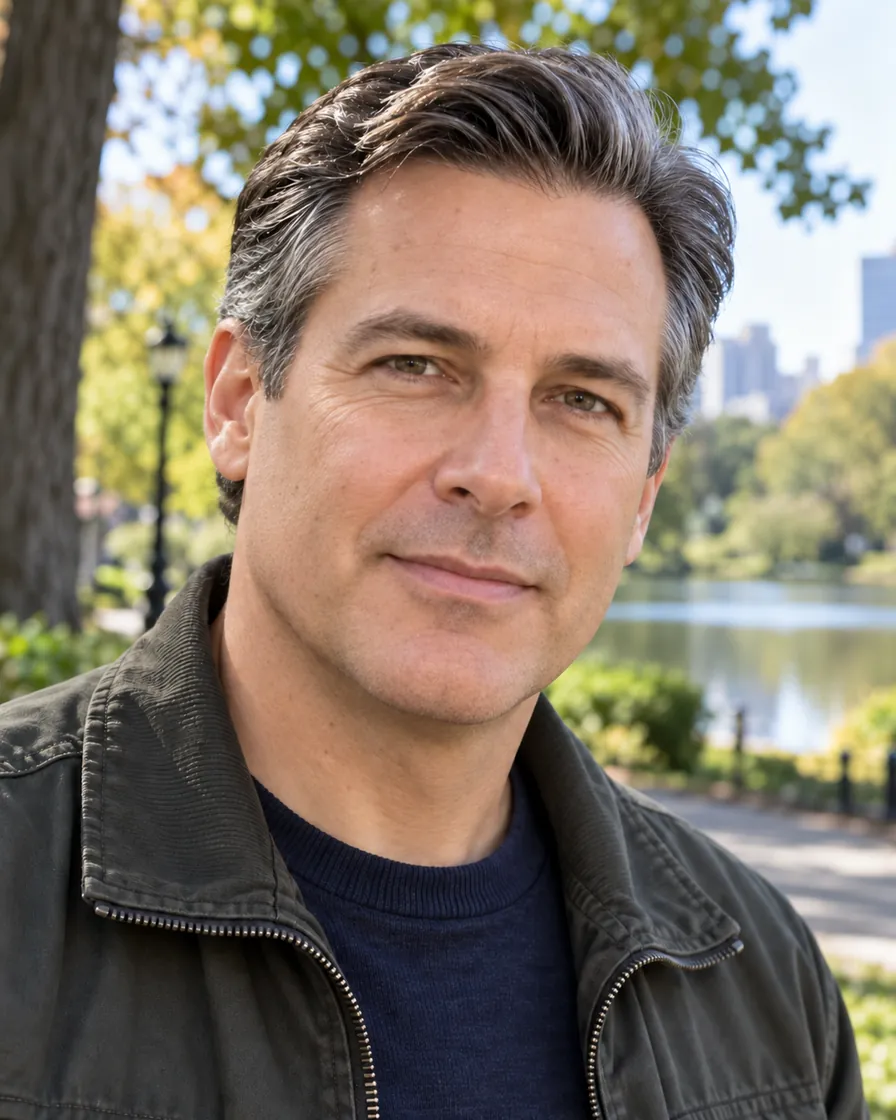
The same portrait with only the skin fixed: pores, wrinkles and stubble
BeforeAfter
Try a sample

A light touch

Only the AI look goes: plastic skin, oily glaze, colour grade and haze.

Everything else stays

Face, pose, outfit, background and framing are left as they were.

2K on Nano Banana 2.1

One pass, about 30 seconds, 5 credits.

Credits come back

If removing the AI look fails, its credits return to your balance.

What does it mean to remove the AI look?

To remove the AI look is to fix the few details that make a picture read as generated, while keeping the parts that already look real. Most people spot an AI image by its skin, its light and its colour, not by its composition, so a full re-render is often too much.

The remove AI look tool on AIImageEditor.pro sends your photo to Nano Banana 2.1 at 2K with an instruction that names the usual tells and asks for nothing else: "if an area already looks like a real photo, do not change it". You can shorten the list to the one problem your picture has.

Use it when a portrait, a product shot or an interior is nearly finished. If the whole picture feels generated, the AI Image Humanizer does a fuller pass.
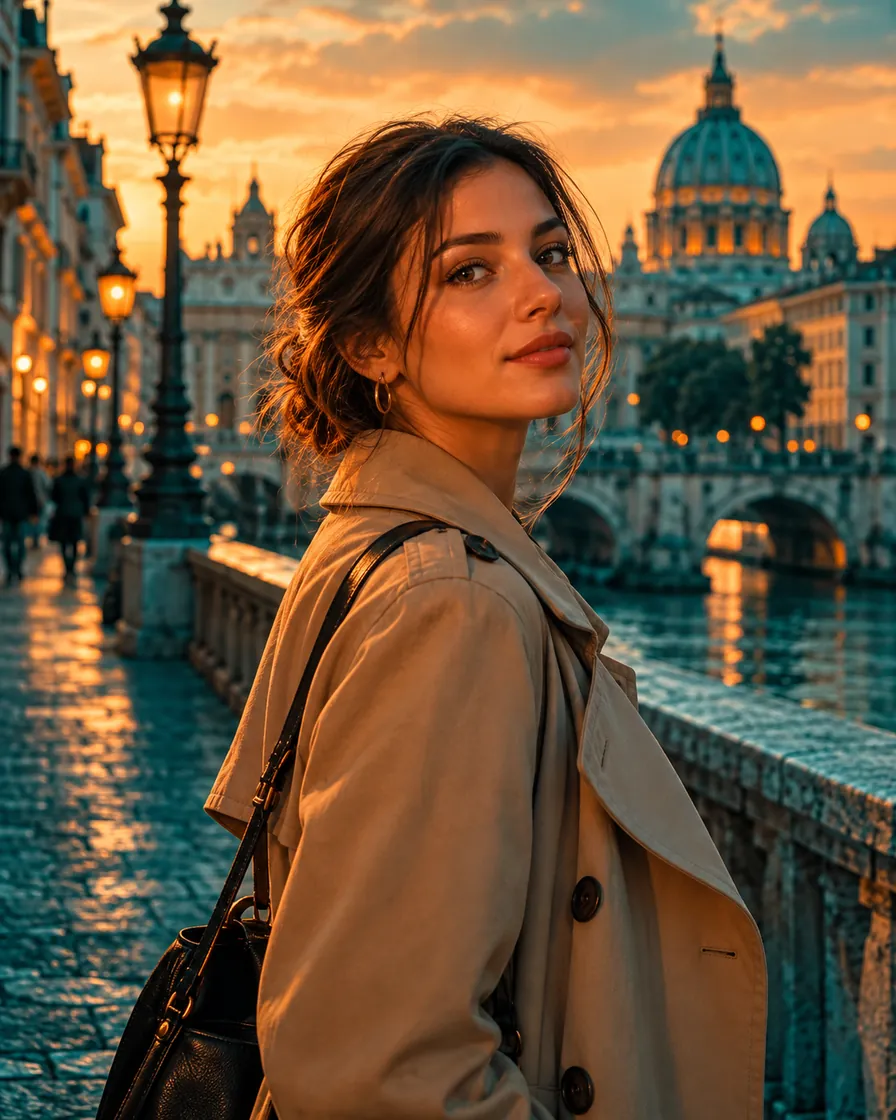
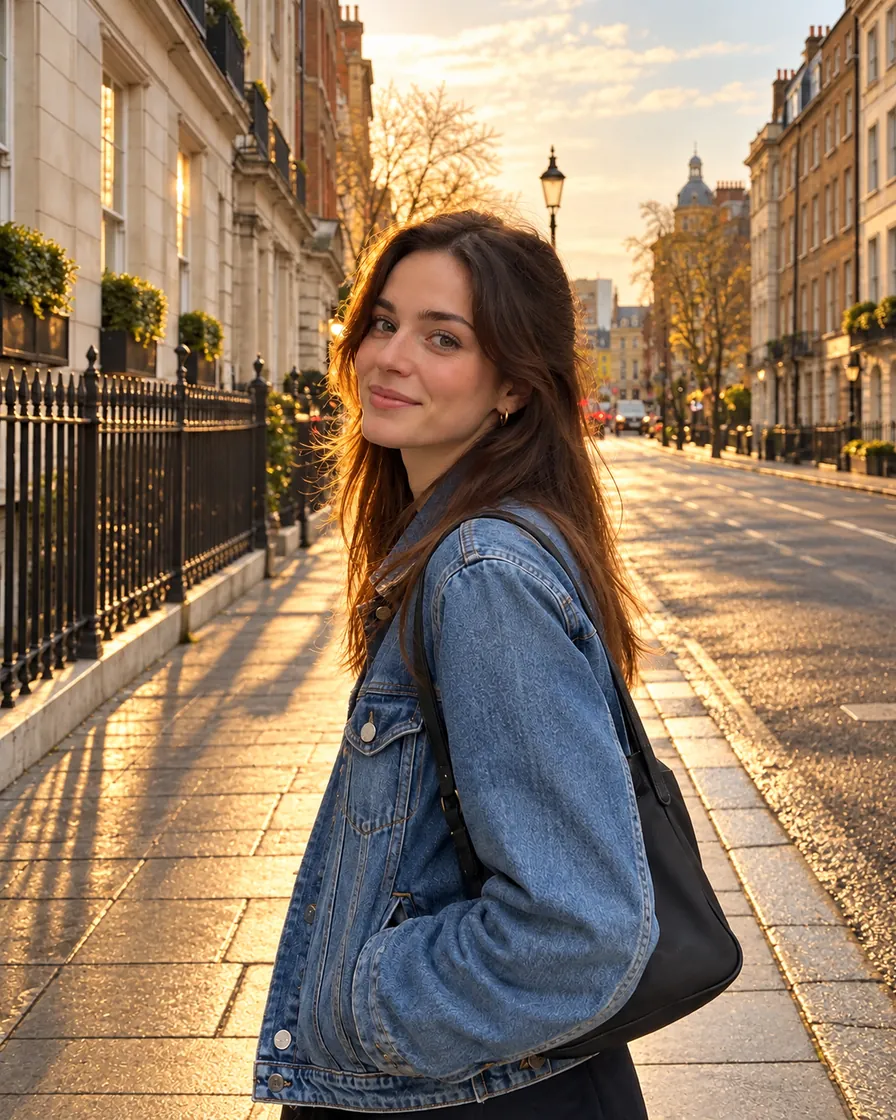
AI street portrait under a heavy teal-and-orange colour grade
The same portrait with the colour grade removed: neutral daylight
BeforeAfter
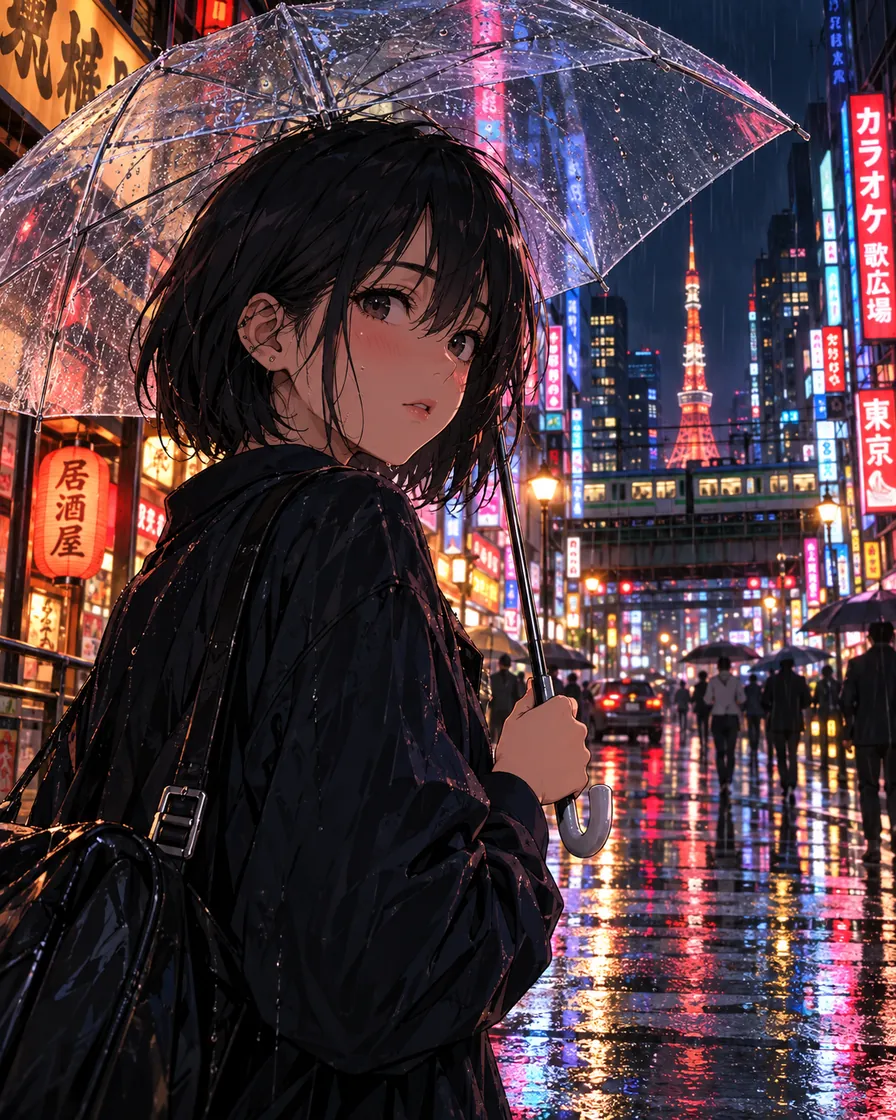
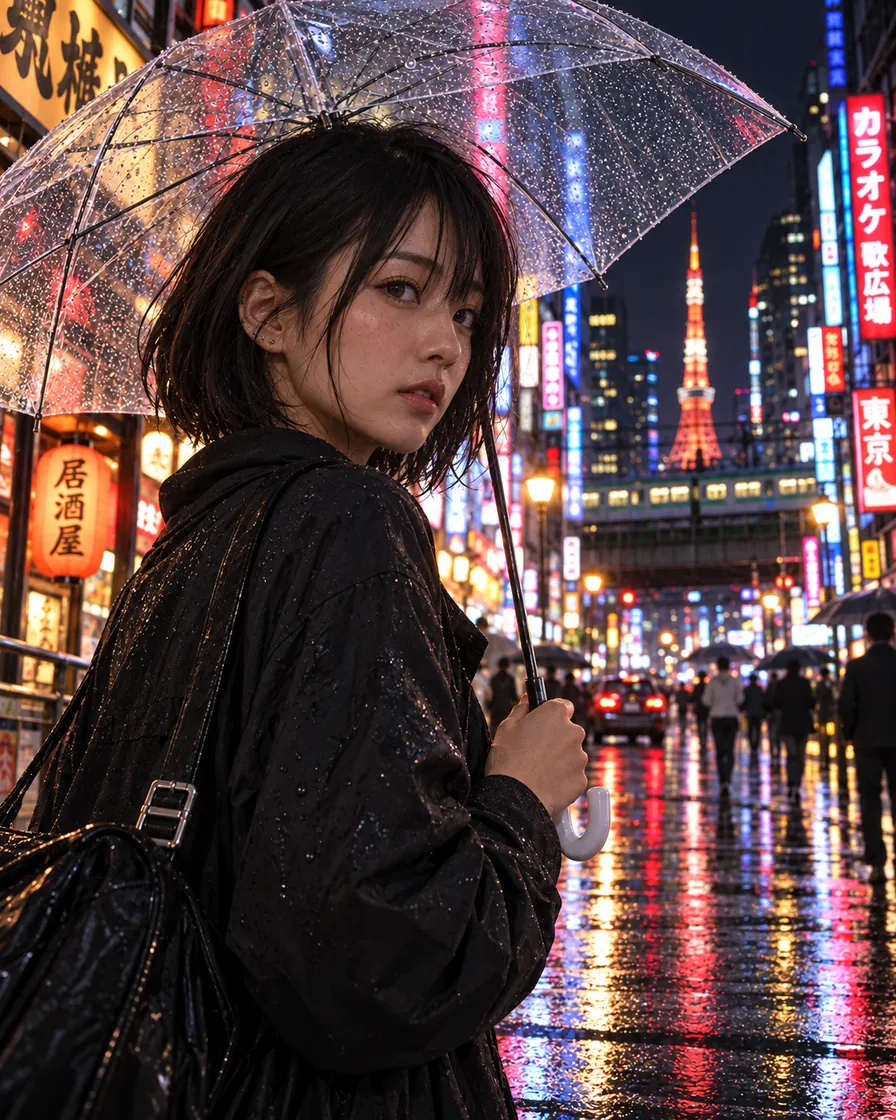
Anime illustration of a girl with a clear umbrella on a rainy Tokyo streetThe same scene as a real photo of a young woman on a rainy Tokyo street at night
BeforeAfter

AI look in.Real photo out.

AI anime, 3D and game art re-shot as real photos, with the same scene and people.

Make it realistic

Remove AI look: one tell at a time

Each pair fixes one specific problem and leaves the rest alone. Drag the handle to compare.

AI portrait of a man in his late 40s with plastic, poreless skin
The same portrait with only the skin fixed: pores, wrinkles and stubble
BeforeAfter

Plastic skin on a portrait

The park, the shirt and the light were believable; only the skin was smoothed into plastic. After removing the AI look the man has the pores, wrinkles, sun spots and stubble of someone in his late forties, and nothing else moved.

  • Skin
  • Portrait
AI street portrait under a heavy teal-and-orange colour grade
The same portrait with the colour grade removed: neutral daylight
BeforeAfter

A teal-and-orange colour grade

Generators love teal shadows and orange skin. Here only the grade is taken out, so the trench coat, the street and the pose stay identical and the colours return to daylight.

  • Colour
  • Street
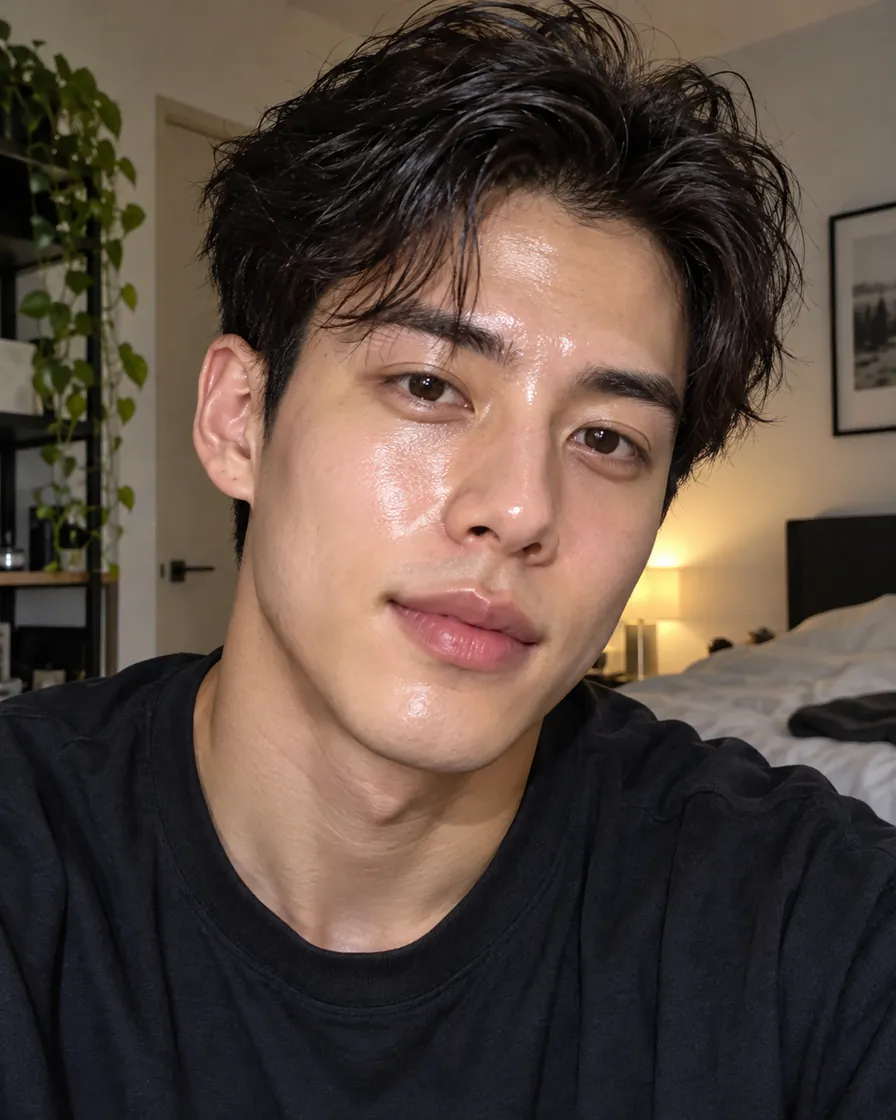
AI portrait of a young man with an oily glaze and beauty-filter smoothing
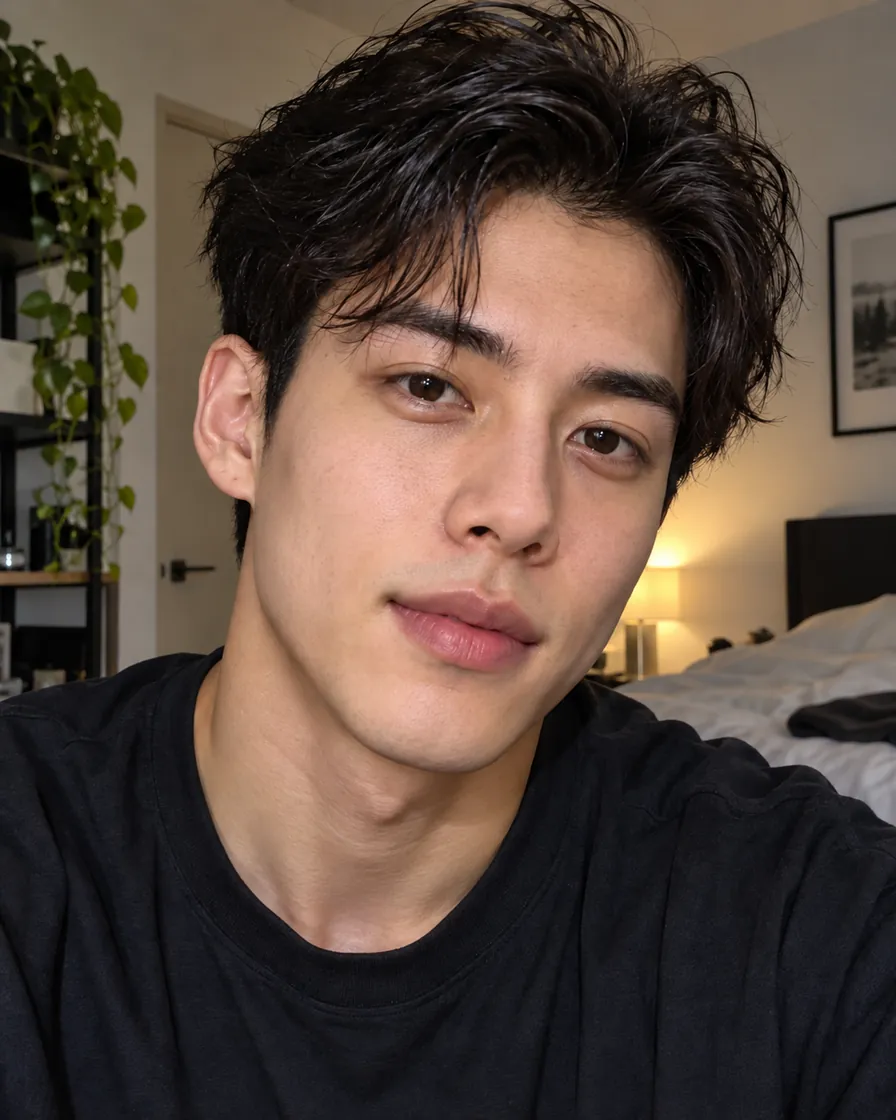
The same portrait with matte, natural skin
BeforeAfter

An oily glaze and a beauty filter

A shine across the forehead and nose plus filter smoothing gave this portrait away. The fix is matte, normal skin texture; the hair, the room and the expression are untouched.

  • Skin
  • Filter
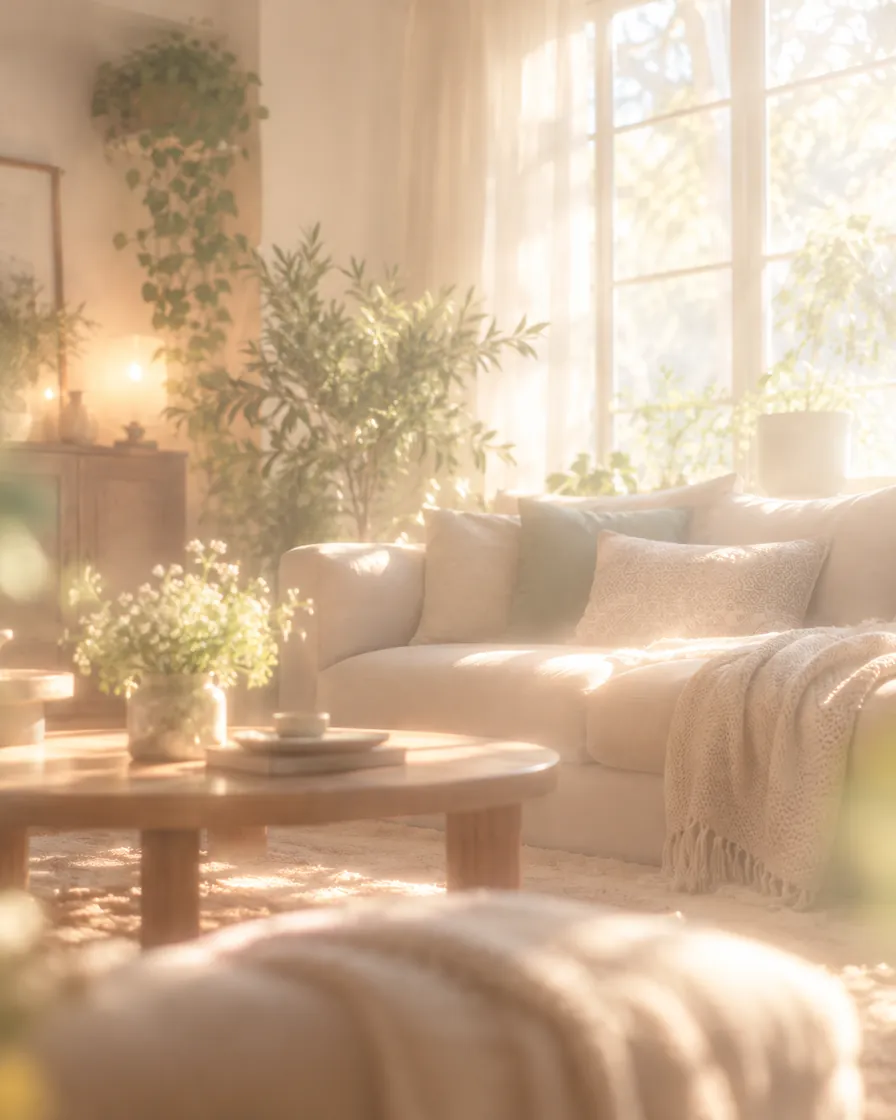
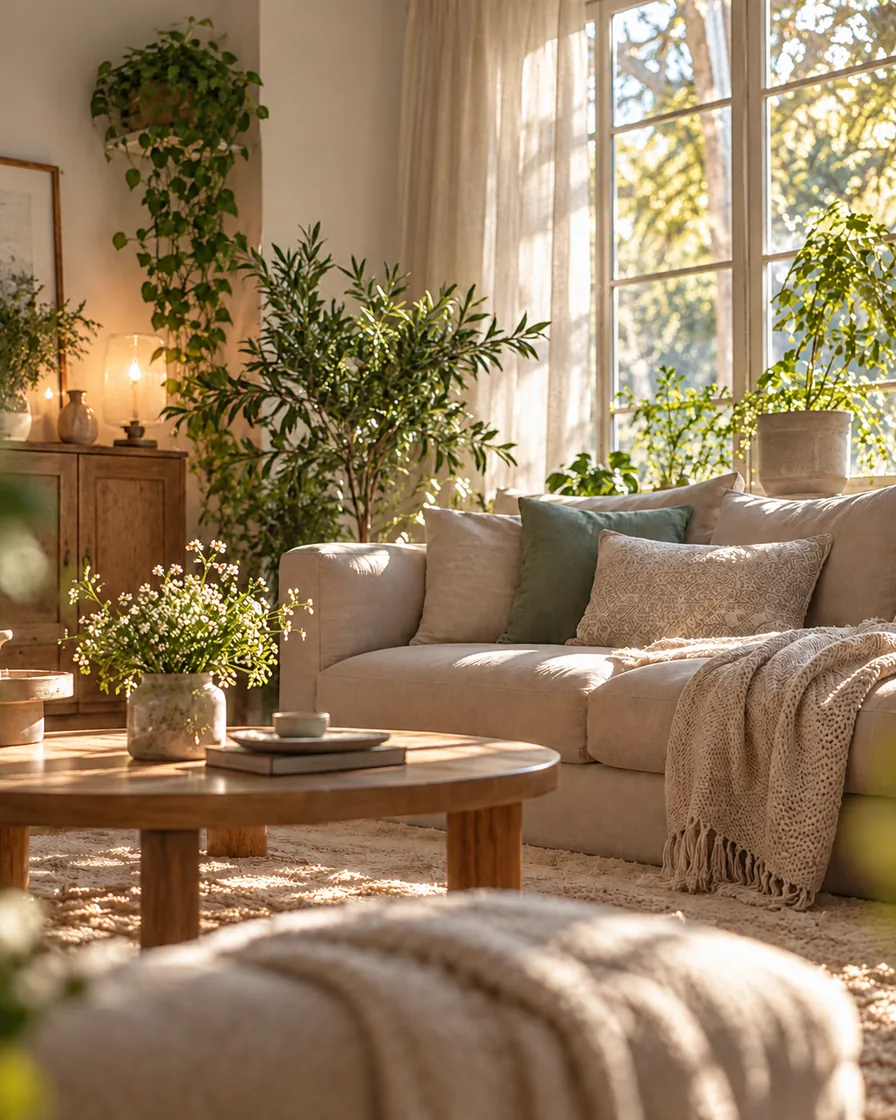
AI living room covered in a white haze and bloom
The same living room crisp and clear, with normal contrast
BeforeAfter

Haze and bloom over a room

Not every AI tell is on a face. A white haze and glowing highlights made this living room look rendered. Removing the AI look gives it the crisp contrast and window light of an interior photo.

  • Interior
  • Haze

Six signs of an AI look, and how the tool removes each

The default instruction covers all six. Delete the ones your picture does not have.

Airbrushed, plastic skin

No pores, no fine lines, an even sheen. Replaced with real skin for the age of the person.

An oily glaze

A wet shine on the forehead, nose and cheeks. Made matte without flattening the face.

Beauty-filter smoothing

Soft focus on the face only. Brought back to the sharpness of the rest of the photo.

A colour grade

Orange skin and teal shadows, or a magenta cast. Returned to neutral daylight colour.

Haze and bloom

A milky veil and glowing highlights. Cleared to normal contrast.

Too-perfect symmetry

Identical eyes, ears and earrings. Given the small differences real faces have.

How to remove the AI look from a photo

  1. 01

    Upload the photo

    One image, JPG, PNG or WebP, up to 10 MB.

  2. 02

    Keep only the tells it has

    The instruction lists six tells. Delete the ones that do not apply, so the model touches as little as possible.

  3. 03

    Compare and download

    About 30 seconds later, drag the handle over the result to check that only the right areas changed, then download it at 2K.

Good to know before you remove the AI look

  • The lighter the edit, the more of your picture survives. If you ask for every tell on a photo that has one, other areas may change slightly.
  • It does not claim to defeat AI detectors and is not designed to. The goal is a photo that looks natural to people.
  • Hands, small text and jewellery can shift. Check them in the comparison before you publish.
  • Upload only photos you made or may edit.

Remove AI look FAQ

How do I remove the AI look from a photo for free?

Sign in with Google to get 5 free credits, upload the photo and press the button: one pass costs 5 credits, so the first one is free.

Why do AI photos look fake?

Usually because of the skin (no pores, an even sheen), the light (a glow with no source, a rim light), the colour (a teal-orange grade) and a background that melts into blur. Composition and pose are rarely the problem.

Will the rest of my photo change?

The instruction asks the model to leave every area that already looks real exactly as it is. Remove the tells your photo does not have from the instruction to keep changes small.

Does it work on Midjourney, DALL·E, Gemini and Stable Diffusion images?

Yes, and on real photos that a beauty filter or a heavy grade made look artificial.

Can I choose what gets fixed?

Yes. The instruction is editable: keep only "fix the plastic skin" or only "remove the orange colour cast", or add your own detail.

Will this make the image pass an AI detector?

We do not claim that, and the tool is not built to evade detection. It improves how natural the photo looks.

What is the difference from the AI Image Humanizer?

Remove AI Look is a targeted fix that leaves most of the picture untouched. The AI Image Humanizer re-renders skin, light and colour across the whole image.

AIImageEditor.pro · Last updated

Remove the AI look from your photo

Start with 5 free credits and fix only what gives your picture away.

Remove AI look
  • 5 credits an image
  • Light touch
  • Nano Banana 2.1 · 2K