How to edit photos with AI prompts
AIImageEditor.pro · Published · Last updated
To edit a photo with an AI prompt, upload the photo to an AI image editor and write one sentence that says what to change and what to keep, for example "Remove the man in the red cap; keep the couple and the sea exactly as they are." The model redraws only what you named. On AIImageEditor.pro one edit costs 5 or 10 credits and new accounts get 5 free.
The sentence pattern that keeps a photo intact
When you edit photos with AI, the image model is good at changing things and less good at guessing what you did not want changed. The fix is to say both. A reliable pattern is: action + target + detail + what stays.
Compare "make it nicer" with "Replace the grey sky with a soft sunset, keep the people, their faces and the buildings unchanged." The second gives the model one job and a fence around it.
- Action: remove, replace, add, change, restore, turn into, relight.
- Target: the object or area, named the way you would point at it ("the stranger on the left", "the wall behind her").
- Detail: colour, material, time of day, style ("navy wool blazer", "late-afternoon sun from the left").
- What stays: faces, pose, framing, text, the rest of the background.
Twelve instruction types, with an example for each
These cover most everyday ways to edit photos with AI. Copy the structure, then swap in your own nouns.
1. Remove a person or object with AI
"Remove the tourist in the red cap and fill in the sand and sea behind the couple."
2. Replace the background with AI
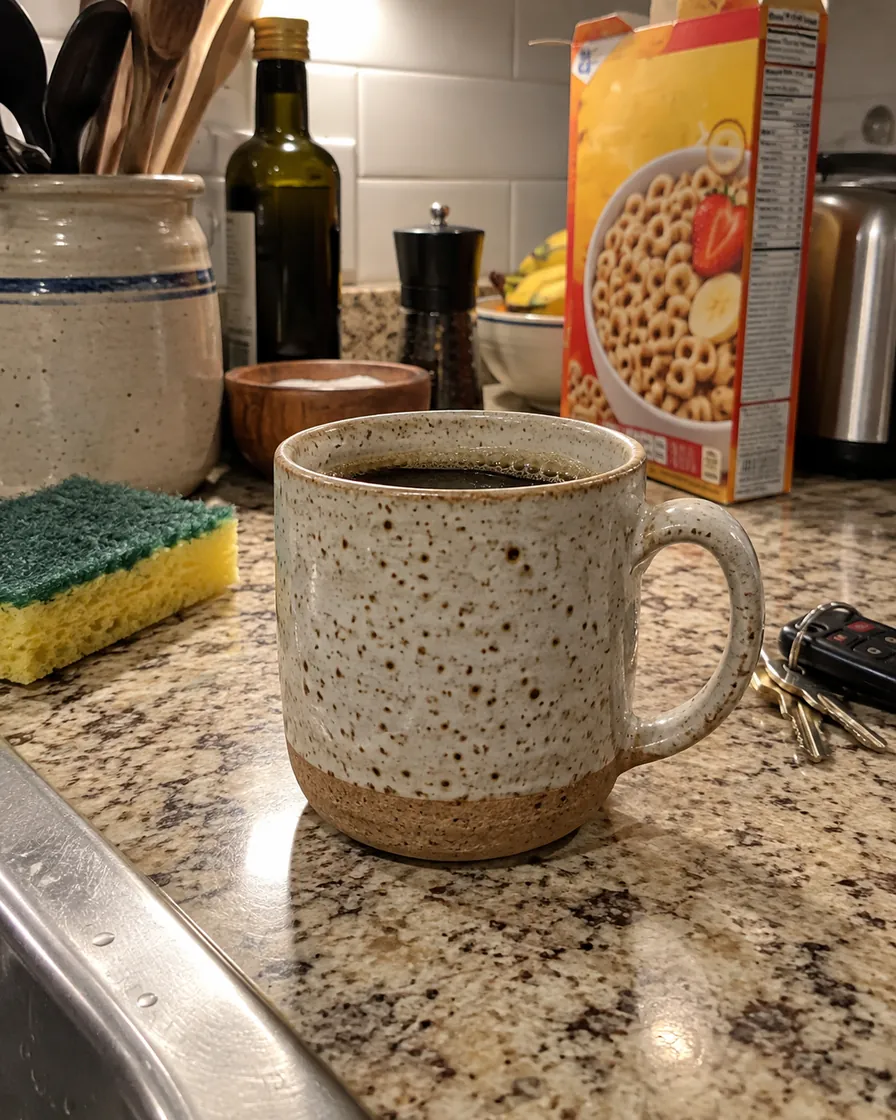
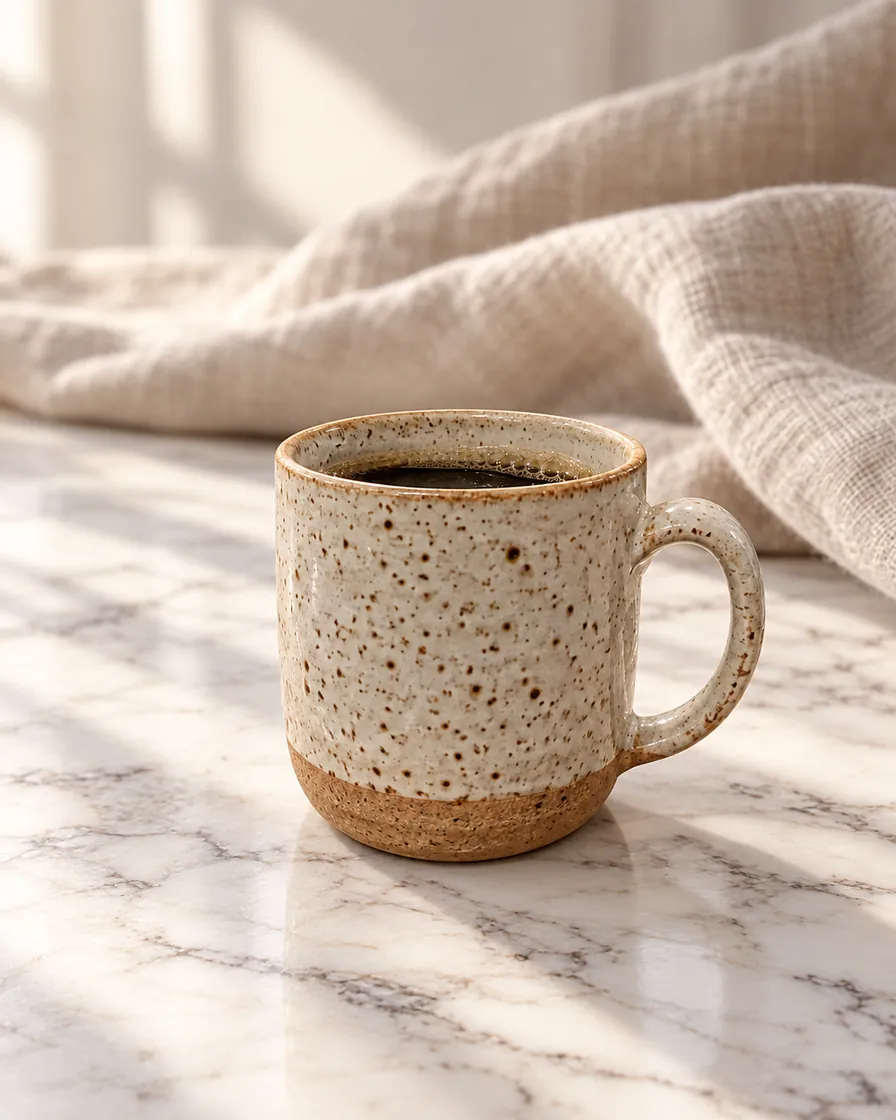
"Put the mug on a white marble slab with soft window light; keep the mug exactly as it is."
3. Change an outfit
"Dress him in a navy blazer over a white shirt; keep his face, hair and the office."
4. Change the light with AI
"Make it golden hour with warm sun from the left and long soft shadows."
5. Restore an old print with AI
"Restore this photo: remove scratches, creases and dust, then colorize it with natural 1960s colours."
6. Rewrite text on a sign or package
"Change the sign above the door to read FRESH BREAD in the same hand-painted style." GPT Image 2 and 2.5 handle lettering best.
7. Add an object with AI
"Add a small potted olive tree on the left side of the sofa, lit by the same window light."
8. Change the season or weather
"Turn the scene into a snowy winter morning; keep the house and the car."
9. Change colour with AI
"Change the dress from red to emerald green; keep the fabric texture and folds."
10. Restyle
"Turn this photo into a loose watercolor painting; same composition."
11. Combine two photos
Upload both, then: "Place the bottle from image 1 on the beach table in image 2, with matching sunlight."
12. Make an AI picture look real
"Make this look like an ordinary phone photo: real skin texture, natural light, no glow." For this job the AI image humanizer already has the instruction written.
Why you can edit photos with AI in one sentence now
Until recently, AI photo tools did one job each: a background remover, an upscaler, a face retoucher. Current image models such as GPT Image 2.5 and Nano Banana 2.1 read an instruction and a photo together, so one AI editor can remove, replace, relight and restyle from plain words.
That is why the prompt matters more than the menu. The same AI model that swaps a background can change an outfit or rewrite a sign, as long as the instruction is clear about the target and about what stays.
Pick the AI model for the job
GPT Image 2.5 (10 credits): precise edits that leave the rest of the photo alone. GPT Image 2 (10 credits): reliable text in images and product shots. Nano Banana 2.1 (5 credits): natural skin and light, strong at keeping faces. Grok Imagine (5 credits): fast, bold looks and poster styles. Nano Banana Lite (5 credits): quick drafts in a few seconds.
If an AI edit keeps changing the face, switch to GPT Image 2.5 or Nano Banana 2.1. If the text in the picture comes out garbled, switch to a GPT Image model.
When an edit goes wrong
When you edit photos with AI, most failed edits come down to one of three problems, and each has a one-line fix.
- Something else changed: add "keep … exactly" for the part that moved, and run it again.
- The change is too weak: be more specific about the result ("a deep blue sky with a few white clouds", not "better sky").
- The model refused: the photo or the request hit a content rule. Nothing is charged for a photo that fails our check, and a model failure returns its credits.
Edit photos with AI the way you would brief a retoucher
A human retoucher would ask: what should change, by how much, and what must not be touched? Answer those three in your sentence and every AI edit becomes predictable. This is the whole skill of editing photos with AI.
Keep one change per run when it matters. Chained edits work well: run the background swap, then press "Keep editing this result" and change the light.
FAQ
Can AI edit a photo from a text prompt?
Yes. Image models such as GPT Image 2.5 and Nano Banana 2.1 take a photo plus an instruction and return the edited photo, usually in under a minute.
How long should an AI editing prompt be?
One or two sentences. Name the change, the target and what must stay. Longer prompts help only when they add specific detail.
Is it free to edit photos with AI?
On AIImageEditor.pro you get 5 free credits after signing in with Google, enough for one standard edit. After that, edits cost 5 or 10 credits.
Why did the AI change the face?
The prompt did not fence it. Add "keep her face exactly the same" and use GPT Image 2.5 or Nano Banana 2.1, which are the most careful with faces.
Open the AI image editor
5 free credits when you sign in with Google. No watermark.
Open the AI image editor